● E-Way Bill Guides · Last checked: November 2026
How to Print an E-Way Bill: With and Without Login
Blog · Published 4 November 2026 · 9 min read
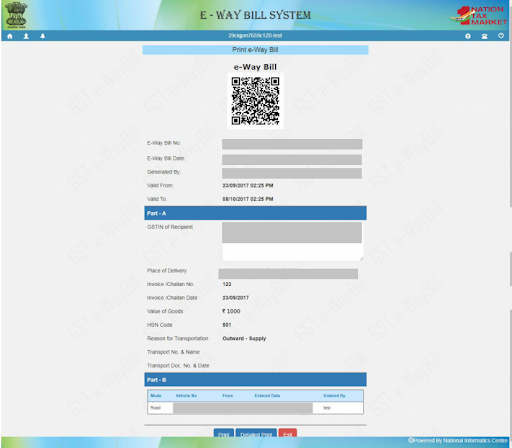
To print an e-way bill, log in to the official portal, go to e-Waybill > Print EWB, enter the 12-digit e-way bill number, click Go and then choose Print or Detailed Print. If you are not the person who generated the bill or the transporter on it, use the public print page on ewaybillgst.gov.in instead, which works without login but asks for some details of the bill first.
For a PDF, pick Save as PDF in the print window. And before the copy goes to the driver, check that Part B (the vehicle details) is filled, because a printout without Part B is not valid for moving goods.
Independent guide: this website is not the government E-Way Bill portal and is not run by GSTN, NIC or the Government of India. We will never ask for your password or OTP. Type them only on the official ewaybillgst.gov.in or ewaybill2.gst.gov.in sites.
Three ways to get an e-way bill printout
Which route you take depends on who you are in the transaction. The NIC user manual says a logged-in print can be taken only by the generator and the transporter of the e-way bill, so a buyer or a driver usually needs the public route.
| Route | Who can use it | What you need | Best for |
|---|---|---|---|
| Right after generating | The person who generated it | Nothing extra, the print option shows on the result screen | First copy for the truck |
| Print EWB after login | Generator or the transporter assigned to the bill | Portal login and the e-way bill number | Reprints, office records, a fresh copy after a Part B update |
| Public print page, no login | Anyone who has the bill details, such as the buyer, driver or your CA | E-way bill number, other details of the bill, captcha | When you cannot log in or are not the generator |
A quick summary of everything else you can do with an existing bill (update, extend, cancel) is on our E-Way Bill management page. This guide sticks to getting a usable copy in hand.
Before you start
What you need before you print
- The 12-digit e-way bill number (EBN). It is on the confirmation screen, the SMS or the copy you shared earlier.
- Your E-Way Bill portal login, if you are the generator or transporter. OTP is needed at login.
- Part B filled with the vehicle number (for road) or the transport document number (for rail, air or ship).
- A printer, or a browser that can save the page as PDF.
Print an e-way bill after logging in
This is the route most accounts teams use every day. Menu names below are as given in the NIC E-Way Bill user manual.
Step 1. Log in to the portal
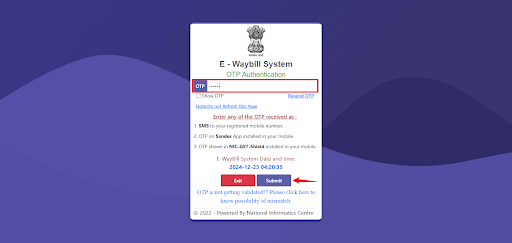
Open ewaybillgst.gov.in and sign in with your username, password, captcha and OTP. If you get stuck here, our E-Way Bill login guide has the official links and the 2FA steps.
Step 2. Open Print EWB
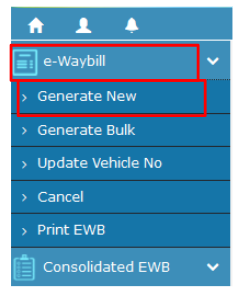
From the main menu go to e-Waybill > Print EWB. A small screen opens with one box for the e-way bill number.
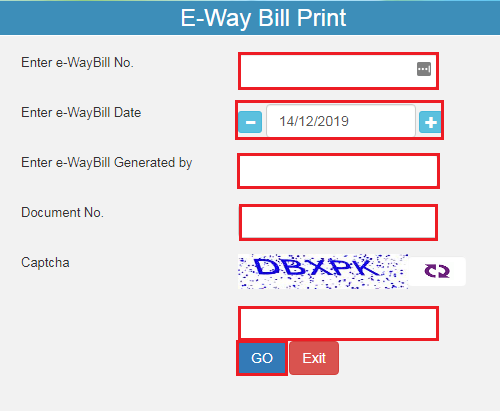
Step 3. Enter the number and click Go
Type the 12-digit EBN and click Go. The portal shows the full e-way bill on screen, with Part A (supplier, recipient, invoice, goods) and Part B (vehicle or transport document).
Step 4. Check the details on screen
Look at the vehicle number, the validity date and the invoice number before you print. If Part B is empty or the vehicle has changed, update it first, then come back and print again.
Step 5. Choose Print or Detailed Print
Click Print for the standard copy or Detailed Print for the longer version. Your browser’s print window opens. Pick a printer, or set the destination to Save as PDF.
Just generated the bill? You do not need to go through Print EWB. The manual says the print can be taken straight from the screen that appears after you generate it. Step-by-step generation is covered in our guide to generating an e-way bill.
Print an e-way bill without login
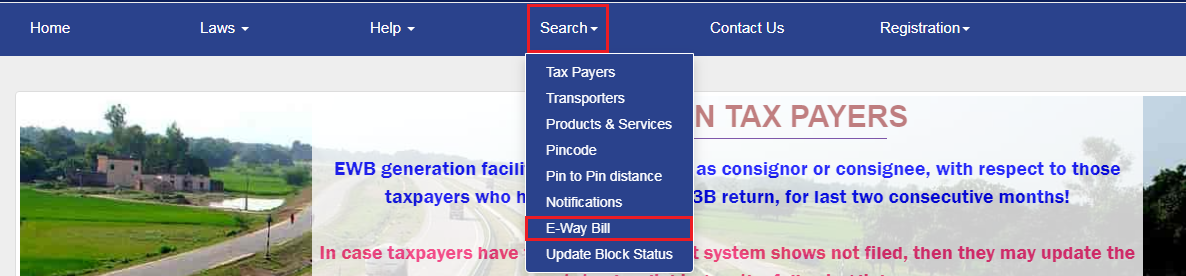
The official site also has a public print page on ewaybillgst.gov.in, reached from the home page without signing in. It is useful when the buyer wants a copy of a bill the supplier generated, when the driver’s copy is lost on the road, or when your own login is not working.
It will not show a bill to someone who only knows the number. Along with the e-way bill number it asks for other details of that bill, such as the date it was generated and the invoice or document number, and a captcha. The NIC user manual does not document this public page, so go by the fields the page itself shows on the day.
Step 1. Open the official home page
Go to ewaybillgst.gov.in. Check the address bar. Fake look-alike sites exist, and the real portal never asks for payment to print a bill.
Step 2. Find the print option
Look for the e-way bill print link in the home page menu (it sits with the search options). It opens a form, not a login screen.
Step 3. Fill in the bill details
Enter the e-way bill number and the other details exactly as they appear on the bill. Copy the invoice number character for character, including slashes and dashes.
Step 4. Enter the captcha and print
Type the captcha, click Go, check that the right bill has opened, and print it or save it as PDF.
If you are the buyer and the details keep getting rejected, the quickest fix is often a WhatsApp message to the supplier asking for the PDF. Ask for the copy after Part B has been filled, not the first draft.
Print or Detailed Print: which one?
Both buttons print the same e-way bill with the same number. Print gives the standard one-page copy that most drivers carry. Detailed Print gives a longer version with more of the bill’s information on it, which some businesses prefer to file with the invoice.
For the journey, either copy is fine. What an officer checks is the bill itself, through its number, so the choice is about your own records, not about compliance.
Download an e-way bill as PDF
The user manual describes printing, not a separate download button. So the PDF comes from your browser’s print window:
| Device | What to do |
|---|---|
| Computer (Chrome or Edge) | After clicking Print or Detailed Print, change Destination to Save as PDF and click Save. Name the file with the EBN so you can find it later. |
| Android phone | In the print screen, choose Save as PDF from the printer list, then tap the PDF icon. |
| iPhone | In the print preview, use the Share button and save to Files, or send it straight to WhatsApp. |
A PDF on the driver’s phone is handy, but keep the paper invoice with the goods. The next section explains why.
Printing a consolidated e-way bill
When one vehicle carries several consignments, the transporter can club the individual bills into one consolidated e-way bill (CEWB) and carry that single document. The manual puts its print option in a separate menu:
Step 1. Open the consolidated EWB menu
Go to Consolidated EWB > Print Consolidated EWB.
Step 2. Enter the CEWB number
Type the consolidated e-way bill number (not one of the individual EBNs) and click Go.
Step 3. Print and hand it over
Print it or save it as PDF. If the vehicle changes mid-way and you regenerate the CEWB, the CBIC FAQ says the new CEWB has to be carried with the new vehicle, so print the new one too.
Does the driver need a printed copy?
Not strictly. Rule 138A(1) of the CGST Rules asks the person in charge of the vehicle to carry the invoice, bill of supply or delivery challan, and a copy of the e-way bill in physical form or the e-way bill number in electronic form. The CBIC FAQ adds that “electronic form” does not mean a soft copy on the phone: the driver can simply quote the e-way bill number to the officer.
| Document | Must it travel with the goods? | Notes |
|---|---|---|
| Invoice, bill of supply or delivery challan | Yes | Paper copy in the vehicle |
| E-way bill | Printout, or just the EBN | Quoting the number to the officer is allowed |
| Consolidated e-way bill | Yes, when one is generated | Carry one CEWB instead of each individual bill |
| E-way bill for goods moving by rail | No | The CBIC FAQ says railways need not carry it with the goods |
In practice, most transporters still send a printout. Phones run out of charge, and a paper copy settles questions quickly at a check post. If something is missing during a check, our E-Way Bill penalty guide explains what can follow.
Check these before you hand over the copy
| Check | Why it matters |
|---|---|
| Part B shows a vehicle or transport document number | The CBIC FAQ says a printout without Part B is not valid for movement of goods |
| Vehicle number on the copy matches the truck | If the truck changed, update the vehicle number and print again |
| Valid upto date and time | An expired bill needs an extension before the goods move further |
| Invoice number and GSTINs match the invoice in the vehicle | A mismatch is the first thing an officer notices |
| It is the latest copy | Old copies printed before a vehicle change can confuse the driver |
Updating the vehicle or extending validity is a separate job. The steps are on the E-Way Bill management page.
If it does not work
| Problem | Try this |
|---|---|
| Print EWB does not open the bill | You may not be the generator or the transporter on that bill. Use the public print page or ask the supplier for a PDF. |
| Public print page rejects the details | Re-check the date and enter the invoice or document number exactly as on the bill. Refresh the captcha and try once more. |
| Print window does not open | Allow pop-ups for the portal in your browser, or try another browser. |
| Printout shows Part B empty | Update Part B with the vehicle number first, then print a fresh copy. |
| Portal will not load or log in | See E-Way Bill login not working for portal-side fixes. The public print page may still work. |
| Many bills to print for one truck | Print EWB takes one number at a time. For a single vehicle with many bills, a consolidated e-way bill gives you one document. |
E-way bill print FAQs
Can the buyer print an e-way bill that the supplier generated?
Not through Print EWB after login, because the manual limits that to the generator and the transporter. The buyer can see such bills in the reports after logging in, and can get a copy through the public print page or simply ask the supplier for the PDF.
Is a photo or PDF of the e-way bill on the driver’s phone enough?
The rules do not require a soft copy at all. Rule 138A allows the e-way bill number in electronic form, and the CBIC FAQ says the driver can just quote the number. The invoice or delivery challan must still be in the vehicle.
Is there a download button for the e-way bill PDF?
The NIC user manual describes Print and Detailed Print only. Choose Save as PDF in the print window to keep a PDF copy.
Can I print several e-way bills in one go?
The Print EWB screen takes one e-way bill number at a time. If many bills travel in one vehicle, the transporter can generate a consolidated e-way bill and print that single document.
Why is Part B blank on my printout?
The vehicle or transport document details were not entered. The CBIC FAQ says such a printout is not valid for moving goods, so update Part B and print again.
Found this useful? Share it with your accounts team.
Related E-Way Bill guides
Got your copy? These guides cover what usually comes next: changing the vehicle, creating a new bill, and what happens if paperwork is missing at a check.
After generation
E-Way Bill Management
Update Part B, extend validity, cancel or reject a bill, and the time limits for each.
Step by step
How to Generate an E-Way Bill
Fill Part A and Part B correctly so the bill you print is right the first time.
Compliance
E-Way Bill Penalty
What happens when goods move without a valid e-way bill, and how a blocked GSTIN is handled.
-
E-Way Bill Limit in Maharashtra: ₹1 Lakh Rule and Exemptions
Read the guide →: E-Way Bill Limit in Maharashtra: ₹1 Lakh Rule and ExemptionsMaharashtra needs an e-way bill inside the state only above ₹1 lakh, with no separate city limit, and goods going…
-

E-Way Bill Limit in Rajasthan: ₹50,000, ₹1 Lakh or ₹2 Lakh?
Read the guide →: E-Way Bill Limit in Rajasthan: ₹50,000, ₹1 Lakh or ₹2 Lakh?Rajasthan has three e-way bill limits: ₹50,000 for goods crossing the state border, ₹1 lakh within the state and ₹2…
-
How to Cancel an E-Way Bill: 24-Hour Rule and Steps
Read the guide →: How to Cancel an E-Way Bill: 24-Hour Rule and StepsCancel an e-way bill within 24 hours of generation from the login that made it: see how the clock runs,…
ewaybillinfo.com
Independent guides to E-Way Bill login, registration, generation, management, limits, penalties and latest updates. Always use the official government portal for account actions.
Guides
Official portals
© 2026 ewaybillinfo.com. All rights reserved.
Independent informational website. ewaybillinfo.com is not affiliated with, endorsed by, or operated by the Government of India, GSTN, NIC, CBIC, or the official E-Way Bill portal. Information on this site is provided for general guidance and may change as government rules, portal features, or procedures are updated. Always verify important details on the official government portal before taking action. We never ask for your E-Way Bill password, OTP, login credentials, or other sensitive account information.