
How to Generate an E-Way Bill Online: Step-by-Step
To generate eway bill details online, log in to the official E-Way Bill portal at ewaybillgst.gov.in, select Generate New, and complete Part A with the required party, document, and goods details. Add the applicable transport information in Part B, review the entered details, and submit the form. The portal then generates an E-Way Bill number (EBN).
Jump to steps: Step 1 · Step 2 · Step 3 · Step 4 · Step 5 · Step 6 · Step 7
This is an independent informational guide and is not affiliated with the government E-Way Bill portal.
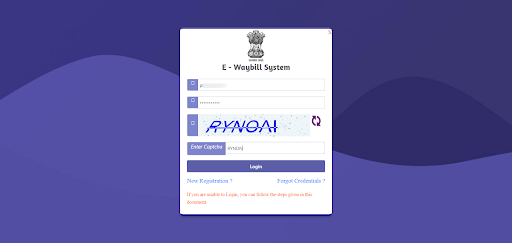
What You Need Before You Generate an E-Way Bill
Keep these details ready before opening the form:
- Portal access: Make sure your account is active. If you still need portal access, see E-Way Bill registration and enrolment.
- Document details: Keep the tax invoice, bill of supply, or delivery challan number and date ready. The document date must be within 180 days of E-Way Bill generation.
- Party details: Have the other registered party’s GSTIN, or use URP where the party is unregistered.
- Goods details: Keep the HSN, quantity, unit, and taxable value ready.
- Location details: Have the dispatch and delivery PIN codes.
- Transport details: Keep the transport mode and applicable vehicle number or Transporter ID ready.
- GSTIN status: Check that your GSTIN is eligible for E-Way Bill generation.
For applicability requirements, check the current E-Way Bill rules and limits on the official E-Way Bill portal before generating a bill.
How to Generate an E-Way Bill on the Portal
The eway bill generation process follows the fields in the portal form. To generate eway bill details correctly, work through each section in order: document details, transaction type, party information, goods, and transport details.
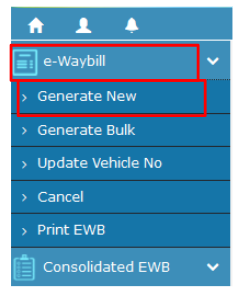
Step 1: Open Generate New
Log in to the E-Way Bill portal and open E-Waybill → Generate New. This takes you to the form used to create a new E-Way Bill. If you cannot access the portal, see [portal status and fallback options: Portal Down page].
Step 2: Choose Supply Type and Document Details
Start with Supply Type. Select Outward when goods are moving from your side or Inward when they are coming to you.
Next, choose the applicable Sub Type for the movement and select the Document Type that supports it. Depending on the transaction, this may be a tax invoice, bill of supply, or delivery challan.
Enter the document number and document date exactly as recorded. The document date cannot be later than the current date.
Do not confuse Supply Type with Transaction Type. Transaction Type deals with the billing and dispatch/delivery arrangement covered in the next step.
Step 3: Select the Transaction Type
Choose the Transaction Type that matches how the goods are billed and physically dispatched or delivered.
| Transaction Type | Use When |
|---|---|
| Regular | The normal billing, dispatch, and delivery arrangement applies |
| Bill To–Ship To | Goods are billed to one party but shipped to a different destination |
| Bill From–Dispatch From | The supplier bills the goods, but they leave from a different dispatch location |
| Combination | Both Bill To–Ship To and Bill From–Dispatch From conditions apply |
For an eway bill bill to ship to transaction, Bill To identifies the billed party, while Ship To records the actual destination. For Bill From–Dispatch From, the billing supplier and physical Dispatch From location are recorded separately. The official system documentation supports both arrangements.
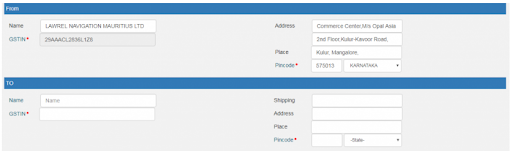
Step 4: Enter Supplier and Recipient Details
Complete the party details for the supplier (consignor) and recipient (consignee). Enter the applicable GSTIN, name, address, PIN code, and state, checking that the location details match the actual movement of the goods.
For an eway bill for unregistered person, enter URP in the relevant GSTIN field when the consignor or consignee does not have a GSTIN. This treatment is confirmed in the official E-Way Bill guidance.
For Bill To–Ship To or Bill From–Dispatch From transactions, record the separate delivery or dispatch location in the corresponding fields rather than treating it as the billing party’s address.
Step 5: Add Item and HSN Details
Add the goods covered by the document, entering the item or product name, description, HSN, quantity, unit, and taxable value for each line item.
The form also asks for the applicable CGST, SGST, IGST, and cess details where relevant. Enter these using the tax treatment recorded for the transaction rather than choosing a classification or GST rate from this guide.
Check each item against the source document before moving on, especially the HSN, quantity, unit, and value.

Step 6: Add Transport Details and Part B
Complete the Part B eway bill details based on how the goods will be transported. Select the transport mode and check the approximate distance shown or required by the portal.
For road movement, enter the applicable vehicle number. If a transporter will complete the transport details, enter the Transporter ID, which may be the transporter’s GSTIN or TRANSIN, as applicable. The transporter can then complete the required Part B details.
For rail, air, or ship movement, enter the applicable transport document number and date where required. If the transporter needs enrolment information, see [transporter enrolment and TRANSIN: Registration page].
Vehicle or Part B details generally need to be completed before the goods move, subject to the limited exceptions provided under the applicable E-Way Bill rules.
Step 7: Review and Submit
Before submitting, check the document details, GSTIN or URP, HSN and taxable value, approximate distance, and applicable transport details.
Select Submit and allow the portal to validate the entries. Once the E-Way Bill is generated successfully, the system assigns a unique E-Way Bill number (EBN). Post-generation changes and management are covered later in this guide.
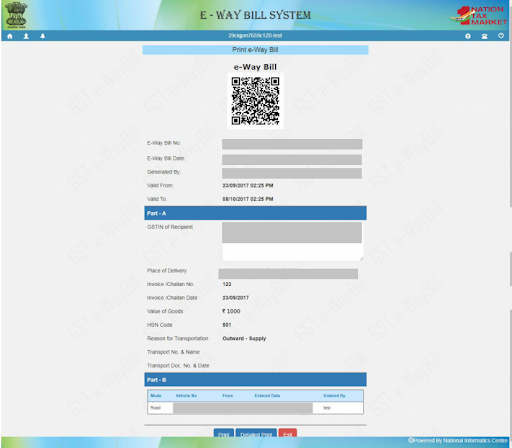
Worked Example: A Regular Outward Supply by Road
Here is a simple example of how the main fields could look when goods are sent by road under a regular outward transaction. All example data is fictional and shown only to explain field placement.
| Field | Example |
|---|---|
| Supply Type | Outward |
| Sub Type | Supply |
| Document Type | Tax Invoice — INV-0457 |
| Transaction Type | Regular |
| Supplier (From) | ABC Sample Traders, Pune, Maharashtra |
| Recipient (To) | XYZ Example Retail, Nashik, Maharashtra |
| Transport Mode | Road |
| Approximate Distance | 210 km (fictional example) |
| Vehicle Number | MH12XX0000 (fictional example) |
In this example, Regular is used because the normal billing, dispatch, and delivery arrangement applies. The supplier and recipient details would be entered in their respective fields, followed by the applicable transport information.
No real GSTIN, HSN classification, or GST rate is included in this example. Use the actual details from your transaction when completing the portal form.
Part A vs Part B of an E-Way Bill
Form GST EWB-01 separates consignment details from transport information:
| Part | Contains | Purpose |
|---|---|---|
| Part A | Party, document, goods, HSN, and value details | Records the consignment information |
| Part B | Vehicle or applicable transport information | Records how the goods will move |
A Part A eway bill entry without the required transport details can produce a Part-A Slip, a temporary reference that can be used by you or the transporter to complete Part B. Entering the required Part B details converts the part a slip into an E-Way Bill.
For road movement, Part B is generally required before the goods move. A limited exception applies to specified movements of up to 50 km within the same State or Union territory, including certain consignor-to-transporter and transporter-to-consignee movements. It should not be treated as a general “under 50 km means no Part B” rule.
Common Errors When Creating an E-Way Bill
If the form will not submit, start with the field named in the message rather than re-entering everything. Exact wording and error codes can change, so check the current E-Way Bill portal message before taking action.
| What You See | Likely Cause | First Action | Where to Go Next |
|---|---|---|---|
| Document/date validation error | Invalid date, duplicate document, or document older than the permitted limit | Recheck the document number and date | Verify the current document-date rule |
| Invalid GSTIN | Incorrect or inactive/cancelled GSTIN details | Check the GSTIN entered | Confirm the party details |
| HSN or field validation error | Invalid or incomplete field data | Recheck the affected field against the source document | Verify classification professionally if needed |
| Vehicle validation error | Vehicle number format or related validation issue | Recheck the entered vehicle number | Confirm details with the transporter or vehicle owner |
| GSTIN blocked | Generation restricted under applicable Rule 138E conditions | Check the GSTIN status | [GSTIN blocking and compliance: Blocking/Rules page] |
| Portal unavailable | Temporary portal or connectivity issue | Check portal availability and retry | Review the portal-status guidance |
| Generation/validation failure | One or more submitted fields failed validation | Read the displayed error and correct the identified field | Use the official helpdesk if the error persists |
| Unable to sign in | Login-related issue rather than form validation | Stop troubleshooting the generation form | [E-Way Bill login problems: Login Problems page] |
After You Generate Your E-Way Bill
Once you generate eway bill details successfully, the portal assigns an E-Way Bill number (EBN). Save the generated E-Way Bill and print or share it where appropriate for the movement.
Any later changes are handled through the portal’s management options rather than Generate New. These may include updating vehicle details, cancelling the E-Way Bill, or extending its validity where the applicable rules allow.
For post-generation tasks such as updating Part B, extending validity, cancelling or rejecting an E-Way Bill, use the relevant option in the E-Way Bill portal.
E-Way Bill Generation FAQs
Can I generate an E-Way Bill without a vehicle number?
You may enter Part A before vehicle details are available. However, an eway bill without vehicle number is generally not valid for road movement until the required Part B details are added, subject to specific exceptions under the rules.
Can I generate an E-Way Bill for an unregistered buyer?
Yes. Enter URP (Unregistered Person) in the recipient GSTIN field where the buyer does not have a GSTIN, then provide the applicable recipient details.
Who fills Part B of an E-Way Bill?
The generator can update Part B, or an assigned transporter can complete it after being assigned through the applicable Transporter ID.
Can a transporter generate an E-Way Bill?
Yes. An eligible registered or enrolled transporter can generate eway bill details in applicable cases using the required consignment information.
Can I edit an E-Way Bill after generating it?
The generated E-Way Bill cannot be edited. Part B can be updated where applicable. If other submitted details are wrong, the generator may need to cancel the E-Way Bill and create a new one. Current portal guidance allows cancellation within 24 hours, subject to applicable conditions.
Can one vehicle carry goods covered by several invoices?
Yes. Each applicable consignment needs its own E-Way Bill. A transporter carrying multiple consignments in one vehicle can then create a consolidated E-Way Bill containing those individual E-Way Bills.
Last updated: 16 October 2026
How we verify this guide: Portal steps, field requirements, and rule-based information are checked against current official E-Way Bill, GST, NIC/GSTN, and CBIC guidance before publication. Portal wording and requirements may change, so time-sensitive instructions are reviewed when this page is updated.
This website is an independent informational resource and is not affiliated with or operated by the government E-Way Bill portal.
ewaybillinfo.com
Independent guides to E-Way Bill login, registration, generation, management, limits, penalties and latest updates. Always use the official government portal for account actions.
Guides
Official portals
© 2026 ewaybillinfo.com. All rights reserved.
Independent informational website. ewaybillinfo.com is not affiliated with, endorsed by, or operated by the Government of India, GSTN, NIC, CBIC, or the official E-Way Bill portal. Information on this site is provided for general guidance and may change as government rules, portal features, or procedures are updated. Always verify important details on the official government portal before taking action. We never ask for your E-Way Bill password, OTP, login credentials, or other sensitive account information.