● E-Way Bill Guides · Last checked: November 2026
How to Check E-Way Bill Status and Verify a Bill Is Genuine
Blog · Published 6 November 2026 · 10 min read
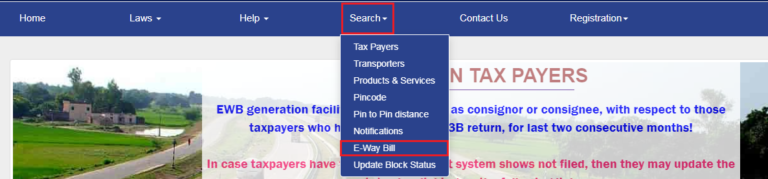
To check an e-way bill status without logging in, open the official portal at ewaybillgst.gov.in, use its Search option for e-way bills and enter the 12-digit e-way bill number along with the other details the form asks for. The CBIC FAQ lists these as the bill date, the generator’s ID (GSTIN) and the document number, and says any person can verify an e-way bill this way. If you can log in, the Reports menu goes further: it lists bills you generated, bills others generated on your GSTIN, bills assigned to you as transporter, and the cancelled and rejected ones.
When people say “status”, they usually want three answers. Is the bill still live, or was it cancelled or rejected? Is it within its validity? And does Part B carry the vehicle that is actually moving the goods? This guide shows where to find each answer, depending on whether you are the supplier, the buyer, the transporter or the person checking a truck at the gate.
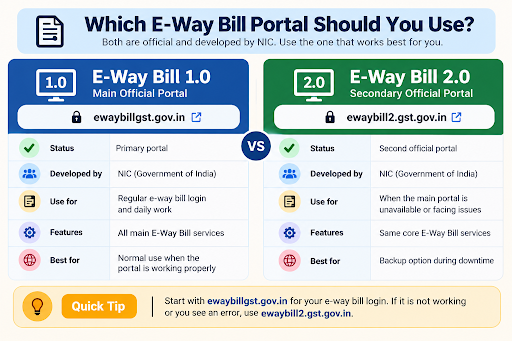
Independent guide: this website is not the government E-Way Bill portal and is not run by GSTN, NIC or the Government of India. We will never ask for your password or OTP. Check bills only on the official ewaybillgst.gov.in or ewaybill2.gst.gov.in sites, and be careful with apps or websites that ask for your portal login to “track” a bill for you.
What an e-way bill status check tells you
The portal does not show one single word like “OK” or “Not OK”. You read the status from a few details on the bill and from the report it appears in. Here is what each one means for the goods.
| What you look at | What it tells you | What it means on the road |
|---|---|---|
| Valid upto date and time | The last moment the bill can be used | After this, the CBIC FAQ says the goods are not supposed to move unless the transporter extends validity for a genuine reason |
| Part B (vehicle or transport document number) | Whether transport details have been filled | A bill without Part B is not valid for moving goods. The vehicle number should match the truck in front of you |
| Listed under Cancelled EWBs | The generator withdrew it, which is allowed only within 24 hours of generation | It cannot be used. If goods still have to move, a fresh e-way bill is needed |
| Listed under Rejected EWBs | The other party refused it | Supplier and buyer need to talk before the goods move on that bill |
| Verified by an officer | A proper officer has checked it in transit | The CBIC FAQ says a verified bill can no longer be cancelled |
How long a bill stays valid depends mainly on distance. The rules for that, and for when a bill is needed at all, are on our e-way bill limit and validity page.
Which route fits your role
Who you are in the transaction decides how much you can see. A buyer with a login sees a lot more than a driver with a printout, but both can confirm that a bill is real.
| You are | Quickest way to check | What you can see |
|---|---|---|
| Supplier who generated the bill | Log in, then Reports > My EWB Reports, or open the bill with Print EWB | Everything, including cancelled and rejected bills |
| Buyer (recipient) with a GSTIN | Log in, then Reports > Others EWB Reports > EWBs generated by others | Bills raised by suppliers on your GSTIN for the date you choose |
| Transporter | Log in, then Assigned to me for Transport, or the dashboard | Bills where you have been named as transporter |
| Driver, warehouse staff, a CA, or anyone holding a copy | Public search on the home page, no login | Whether the bill exists and its details match the copy |
Check e-way bill status without login
This is the check to run when a truck arrives with a printout, or when your own login is not working. You only need the bill copy, not a portal account. The CBIC FAQ describes it as the way for anyone to verify the authenticity and correctness of an e-way bill.
What you need before you start
- The 12-digit e-way bill number (EBN) from the copy, SMS or PDF
- The date the bill was generated
- The generator’s GSTIN (printed on the bill)
- The invoice, bill of supply or challan number shown on the bill
Step 1. Open the official home page
Type ewaybillgst.gov.in yourself instead of clicking a link from a message. The real site never charges a fee to check a bill. Our E-Way Bill login guide lists both official addresses if you are unsure.
Step 2. Open the Search option for e-way bills
In the home page menu, open Search and choose the e-way bill search. You will get a short form with a captcha, not a login screen.
Step 3. Enter the bill details exactly
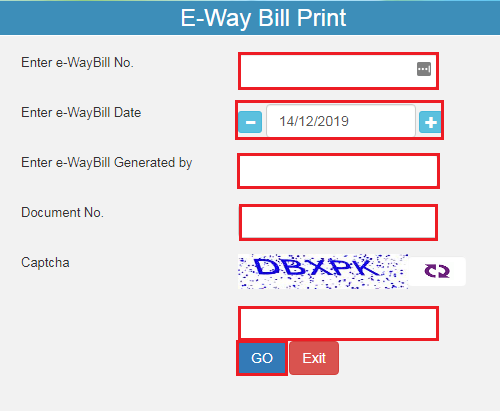
Fill in the e-way bill number and the other fields the form shows on the day, such as the date, the generator’s GSTIN and the document number. Copy the document number character for character, with slashes and dashes. Then type the captcha and click Go.
Step 4. Read the result against the copy in your hand
If the bill opens, compare it with the paper or PDF you were given (list below). If the portal says no record is found, recheck every digit before deciding the bill is fake, because a single wrong digit gives the same message.
What to compare when the bill opens
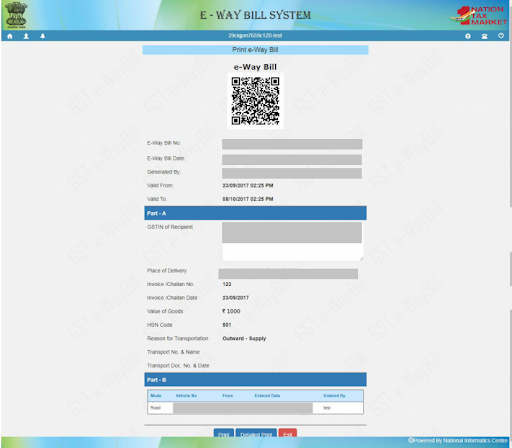
- E-way bill number and generation date
- GSTIN of the supplier and the recipient, especially your own GSTIN if you are the buyer
- Invoice or challan number and date, matched with the invoice that came with the goods
- Goods description and value, roughly in line with the invoice
- Vehicle number in Part B, matched with the truck at your gate
- Valid upto date and time, so you know the bill did not expire on the way
Need a copy, not just a check? Printing and saving a PDF, with or without login, is covered step by step in our guide to printing an e-way bill.
Check status after logging in: the Reports menu
After login you do not need to search bill by bill. The Reports menu groups bills by what happened to them. Menu and report names below are as given in the NIC E-Way Bill user manual. The manual describes these reports as running for a date you pick, so keep the generation date handy.
Step 1. Log in to the portal
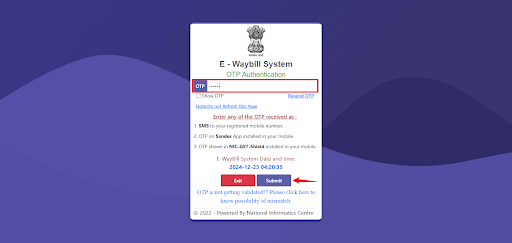
Sign in at ewaybillgst.gov.in with your username, password, captcha and OTP. If the login itself fails, see E-Way Bill login not working first.
Step 2. Open Reports > My EWB Reports
Use this for bills raised from your own GSTIN. Choose Outward Supplies or Inward Supplies for live bills, Cancelled EWBs or Rejected EWBs to see what was withdrawn or refused, CEWB Generated for consolidated bills, and Assigned for Transporters to see which transporter has each bill.
Step 3. Open Reports > Others EWB Reports
Use this for bills that other people created. EWBs generated by others shows bills your suppliers raised on your GSTIN. Rejected EWBs by others shows your bills that the other party refused. Assigned to me for Transport is the transporter’s list.
Step 4. Select the date and generate the list
Pick the generation date and click Go. Each row shows the e-way bill number with its main details. Note any bill that looks unfamiliar, has the wrong vehicle, or is close to its validity time.
Step 5. Open one bill to see it in full
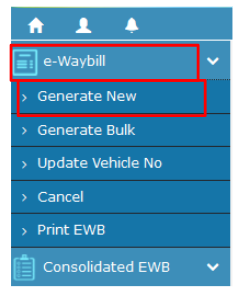
To see the complete Part A and Part B of a single bill, use e-Waybill > Print EWB and enter the number. The manual allows this only for the generator and the transporter of that bill, so a buyer should rely on the reports or the public search.
| Report | Best for | Typical question it answers |
|---|---|---|
| Outward Supplies | Supplier | Did today’s bills go out with the right vehicle? |
| Cancelled EWBs | Supplier | Was that wrong bill actually cancelled? |
| Rejected EWBs by others | Supplier | Did a customer refuse any of my bills? |
| EWBs generated by others | Buyer | Which suppliers raised bills on my GSTIN? |
| Assigned to me for Transport | Transporter | Which bills do I need to fill Part B for? |
| Summary Reports > Datewise Activities | Accounts team | What happened on our GSTIN on a given day? (can be exported to Excel) |
Spot bills raised on your GSTIN by someone else
This is the check most buyers skip, and it is the one that protects you. A supplier can generate an e-way bill showing your GSTIN as the recipient for goods you never ordered. According to the CBIC FAQ, you can find out in four ways:
- The dashboard you see right after logging in
- A daily SMS giving the total e-way bill activity on your GSTIN
- The Reject option, which lists bills by generation date
- The report of bills generated by other parties (Reports > Others EWB Reports)
Do not sit on a bill that looks wrong. Rule 138(12) gives the recipient 72 hours, or until delivery if that is earlier, to reject it. If you do nothing in that time, the bill is treated as accepted. The rejection steps and time limits are on our E-Way Bill management page.
A habit that works: have one person in accounts open EWBs generated by others each morning for the previous day and tick each bill against the purchase orders. Anything without a purchase order gets a phone call to the supplier the same day, well inside the 72 hours.
Can you track the truck like a courier?
No. When people search for “e-way bill tracking”, they often expect a live map. None of the reports in the official user manual show where the vehicle is right now. What the portal tells you is the vehicle number on the bill, the transporter assigned to it and how long the bill stays valid. For the truck’s actual location, ask the transporter.
Some private apps and websites offer paid tracking based on toll crossings or other data. Those are separate services, not the government portal. Never hand over your E-Way Bill username, password or OTP to use one.
If the check does not work
| What you see | Likely reason | Try this |
|---|---|---|
| No record found | One wrong digit in the number, date or document number | Re-enter all fields from the copy, refresh the captcha, and try once more |
| Bill opens but details differ from the paper copy | The copy is old (printed before a vehicle change) or not genuine | Do not accept the goods on that bill until the supplier explains and sends a fresh copy |
| Bill is in Cancelled EWBs but the goods arrived | Supplier cancelled it and did not send the new one | Ask for the new e-way bill number. The CBIC FAQ says goods in movement must always have a valid e-way bill |
| Valid upto time has passed and the truck is still on the road | Delay on the way | The transporter carrying the goods can extend it in genuine cases. See E-Way Bill management |
| A supplier’s bill is missing from EWBs generated by others | Wrong date selected, or the supplier typed a different GSTIN | Check the generation date; then ask the supplier for the EBN and use the public search |
| Portal will not load or log in | Portal-side or browser problem | Use our login fixes. The public search may still work |
E-way bill status FAQs
Can I check an e-way bill status using only the vehicle number?
The public check described in the CBIC FAQ starts from the e-way bill number, with the date, generator ID and document number. If you only have the truck number, ask the driver or transporter for the e-way bill number shown on their copy.
Is the e-way bill number alone enough to verify a bill?
Usually not. The verification described by CBIC asks for the bill date, the generator’s GSTIN and the document number as well, so someone who only knows a number cannot open your bill. All of these are printed on the bill copy.
How do I know if someone generated an e-way bill on my GSTIN?
Log in and check the dashboard or Reports > Others EWB Reports > EWBs generated by others. The CBIC FAQ also says you get one SMS every day with the total e-way bill activity on your GSTIN.
What happens if my e-way bill expires while the goods are on the way?
The CBIC FAQ says goods are not supposed to move on an expired bill. In genuine cases such as an accident, a natural calamity or a law-and-order problem, the transporter carrying the goods can extend the validity within the allowed window.
Can an e-way bill be cancelled after an officer has checked it?
No. The CBIC FAQ says that once a proper officer has verified an e-way bill, it cannot be cancelled, even inside the 24-hour window.
Found this useful? Share it with your accounts team.
Related E-Way Bill guides
Found a problem with the bill? These guides cover the next step: fixing or cancelling it, getting a proper copy, and what happens if goods move on a bad bill.
After generation
E-Way Bill Management
Update Part B, extend validity, cancel or reject a bill, and the time limits for each.
Copies
How to Print an E-Way Bill
Print or save a PDF after login or from the public page, and check Part B before it goes to the driver.
Compliance
E-Way Bill Penalty
What follows when goods move without a valid bill, and how a blocked GSTIN is handled.
-
E-Way Bill Limit in Maharashtra: ₹1 Lakh Rule and Exemptions
Read the guide →: E-Way Bill Limit in Maharashtra: ₹1 Lakh Rule and ExemptionsMaharashtra needs an e-way bill inside the state only above ₹1 lakh, with no separate city limit, and goods going…
-

E-Way Bill Limit in Rajasthan: ₹50,000, ₹1 Lakh or ₹2 Lakh?
Read the guide →: E-Way Bill Limit in Rajasthan: ₹50,000, ₹1 Lakh or ₹2 Lakh?Rajasthan has three e-way bill limits: ₹50,000 for goods crossing the state border, ₹1 lakh within the state and ₹2…
-
How to Cancel an E-Way Bill: 24-Hour Rule and Steps
Read the guide →: How to Cancel an E-Way Bill: 24-Hour Rule and StepsCancel an e-way bill within 24 hours of generation from the login that made it: see how the clock runs,…
ewaybillinfo.com
Independent guides to E-Way Bill login, registration, generation, management, limits, penalties and latest updates. Always use the official government portal for account actions.
Guides
Official portals
© 2026 ewaybillinfo.com. All rights reserved.
Independent informational website. ewaybillinfo.com is not affiliated with, endorsed by, or operated by the Government of India, GSTN, NIC, CBIC, or the official E-Way Bill portal. Information on this site is provided for general guidance and may change as government rules, portal features, or procedures are updated. Always verify important details on the official government portal before taking action. We never ask for your E-Way Bill password, OTP, login credentials, or other sensitive account information.