
EWay Bill Management After Generation: Print, Update, Extend or Cancel
After generation, eway bill management happens on the official EWay Bill portal. Every task starts with your EWay Bill number (EBN). From there you can:
- print the EWay Bill
- update Part B or the vehicle number
- extend validity when eligible
- cancel or reject it within set time limits
- consolidate several bills into one
- verify its details
Part A cannot be edited after submission. Wrong Part A details usually mean you have to cancel and create a new E-Way Bill.
Jump to: Print · Update vehicle · Extend · Cancel or reject · Consolidate · Verify · Edit
Need to sign in first? See Eway Bill login. This is an independent guide, not the government portal
Print, Reprint or Save an E-Way Bill as PDF
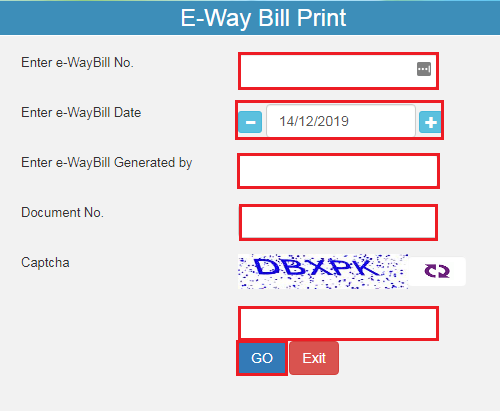
Eway bill management starts with the basics: every EWay Bill print is pulled up with its EBN, so keep that number ready. Enter the bill number and select Go. Choose Print for the standard copy, or Detailed Print for more detail.
In your browser’s print window, pick a printer, or set the destination to Save as PDF.
This is how you save an EWay Bill as PDF, no dedicated download button was found on the portal.

You can print E-Way Bill copies again for the driver or your records by repeating the same steps. Reprinting does not change the Bill. To print EWay Bill without login, the portal may offer a public print option, it asks for the EBN and other details.
Update Vehicle Number or Part B
This eway bill management section is about later changes, how to update Part B Eway Bill details after generation, including how to update vehicle number in EWay Bill: a new vehicle, a changed transport mode, or transport details that were left blank.
Entering transport details for the first time while creating the E-Way Bill is a different task. See [ Generate E-Way Bill page].
Change the vehicle or add missing Part B
Part B can be updated by the generator or by the transporter assigned to the E-Way Bill. Once a transporter is assigned, the update may rest with them. You can update Part B any number of times within the validity period, an update doesn’t recalculate or extend validity (official FAQ).
- Open the current vehicle/Part B update option from the E-Way Bill menu and enter the EBN.
- Select the transport mode. For road, enter the vehicle number. For rail, air or ship, enter the transport document number and date.
- Choose the reason and the place where the change happens.
- Submit.
Before updating, check that the EWay Bill is still valid, if validity is about to run out, extend it first.
If the vehicle breaks down or goods change vehicles
An E-Way Bill vehicle breakdown doesn’t mean you need a new Bill. What you do next depends on the situation (per the official FAQ):
- Same vehicle repaired and continuing: no update is normally needed.
- Goods moved to a replacement vehicle: update the vehicle number and select breakdown as the reason.
- Goods shifted to another mode, or through transshipment: update Part B for each leg of the journey.
- Delay pushing past validity: extend validity within the allowed window (see below).
Change the transporter or split across vehicles
Changing the vehicle and changing the transporter are separate actions. Handing over to a different transporter: use Update EWB Transporter and enter their Transporter ID (a GSTIN or TRANSIN). The new transporter then handles Part B. Splitting one consignment across several vehicles: use Change to Multi Vehicle, only after Part B exists. Many E-Way Bills at once can be handled with the bulk vehicle update option. Transporters without an ID should see [transporter enrolment and TRANSIN — INTERNAL LINK: Registration page].
Extend Eway Bill Validity
Extension is a key eway bill management step for goods that genuinely can’t reach the destination in time, a natural calamity, a law-and-order problem, an accident, or a transshipment delay. The transporter carrying the goods when validity expires can extend Eway Bill validity under Rule 138.
Before you start, check that:
- You can request an extension during the eight hours leading up to expiry or within eight hours after the E-Way Bill expires. Part B must be available, and an extension cannot take the E-Way Bill beyond 360 days from its original generation date.
- Part B has been filled
- The Eway Bill has not reached its maximum overall life: overall cap, such as 360 days.
Cancel or Reject an Eway Bill
| Action | Who Uses It | When | Purpose |
|---|---|---|---|
| Cancel | The generator | Within 24 hours of generation, if not verified by an officer | Withdraw an E-Way Bill that won’t be used or has wrong details |
| Reject | The other party whose GSTIN appears on it | Within 72 hours or before delivery, whichever is earlier | Refuse an E-Way Bill you did not agree to |
These time limits matter because once the cancellation window closes, or the goods have been delivered, the available options change. If the recipient doesn’t accept or reject the E-Way Bill within the allowed period, its details are treated as accepted.
Cancel an E-Way Bill within 24 hours
Only the generator can cancel an E-Way Bill. Use this option when the goods won’t move, or when Part A details are wrong.
- Open the current Cancel option under the E-Way Bill menu.
- Enter the EBN.
- Pick a reason and add remarks.
- Submit.
The E-Way Bill cancellation time limit is 24 hours from generation. Cancellation is permanent, a cancelled E-Way Bill can’t be restored. Cancellation is not possible once a proper officer has verified the bill in transit. If the goods still need to move, [generate a new E-Way Bill] with the correct details.
Reject an E-Way Bill generated on your GSTIN
Someone may generate an Eway Bill that names your GSTIN as the other party, for a supply you did not agree to. You can reject the EWay Bill through the Reject option.
Rule 138(12) allows rejection within 72 hours of the details being made available, or before delivery, whichever comes first. If you take no action in that time, the EWay Bill is treated as accepted. This is called deemed acceptance.
- Open Reject and enter the EBN. Within 72 hours of the details being made available, or before delivery of the goods, whichever is earlier.
- Select the E-Way Bill and confirm the rejection.
- Submit.
Missed both windows?
After the window closes, the portal no longer offers Cancel or Reject for that Eway Bill. There is no portal workaround. Speak to your tax adviser about the right next step.
Create a Consolidated Eway Bill
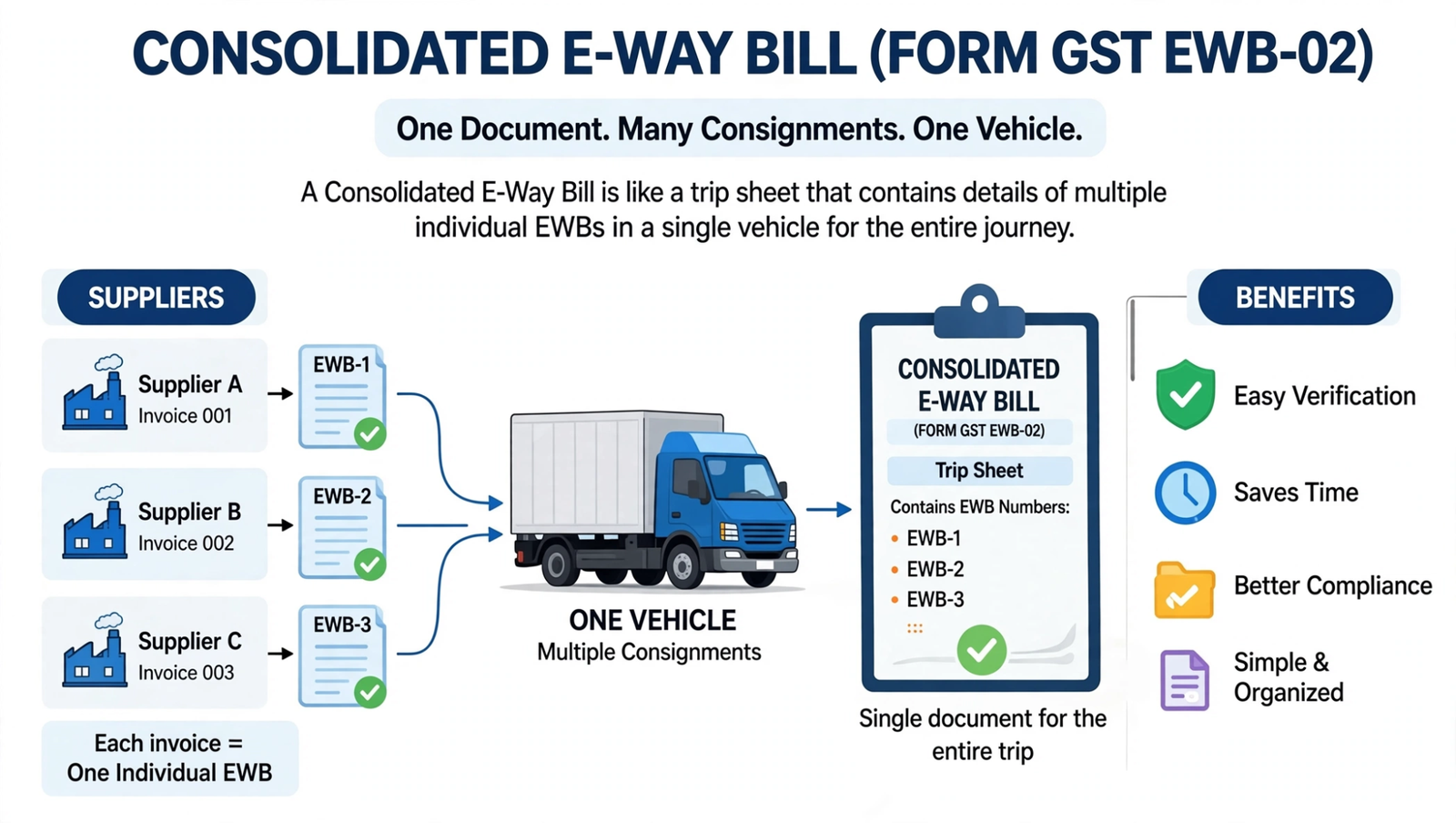
When a vehicle carries multiple consignments, the transporter can prepare a consolidated E-Way Bill that brings the individual bills together for the journey. Each consignment still needs its own individual E-Way Bill first. Consolidation only groups them, handy when one vehicle carries consignments headed to different destinations.
- Open Consolidated EWB and choose the generate option. [FRESHNESS CHECK REQUIRED]
- Select the state and transport mode, then enter the vehicle number.
- Add the EBN of each individual E-Way Bill.
- Submit to generate the consolidated E-Way Bill for the selected vehicle and individual EBNs.
Validity stays with each individual E-Way Bill. If the vehicle changes mid-trip, use Regenerate CEWB with the new vehicle details instead of building a new consolidation.
For transporters on multi-load trips, this avoids updating each E-Way Bill separately.
Verify an E-Way Bill or Check Its Details
To verify EWay Bill details:
- Use the search option on the official Eway Bill portal (ewaybillgst.gov.in), usually shown as Search → eway Bill.
- Enter the EBN and any other details requested, such as the date, the generator’s GSTIN, or the document number.
- Compare the result with the paper copy travelling with the goods.
Use the official E-Way Bill search facility to verify the bill details shown by the system. Logged-in users can also review their own E-Way Bills through the available reports and search tools. [identify fake Eway Bill websites — INTERNAL LINK: Fake-site/Safety page].
Can You Edit an Eway Bill After Generation?
No. You can’t edit Eway Bill after generation in the sense of rewriting what was submitted. The portal only allows specific updates.
| Detail | Can It Be Changed? | Correct Route |
|---|---|---|
| Part A (parties, document, goods, value) | No | Cancel within 24 hours and generate a new one |
| Vehicle number | Yes, while valid | Update Vehicle No. |
| Transport mode or document | Yes, while valid | Update Part-B |
| Transporter | Yes | Update EWB Transporter |
| One vehicle to several | Yes | Change to Multi Vehicle |
| Validity | Only by extension, if eligible | Extend Validity |
A Part A mistake found after 24 hours cannot be fixed through cancellation. This is why eway bill management starts with getting Part A right the first time. See the note above on missed time limits.
Post-Generation Time Limits at a Glance
These limits govern most post-generation tasks. Confirm them against current rules before acting.
| Task | Limit |
|---|---|
| Cancellation | Within 24 hours of generation |
| Rejection | 72 hours from details being available, or before delivery, whichever is earlier |
| Part B or vehicle update | While the E-Way Bill is valid |
| Extension | Within the window around expiry |
| Validity | Based on distance and type of goods, subject to an overall cap |
Note: the extension window is described differently in the FAQ and the Rule 138 proviso, see the Extend section above.
For full detail, see [Eway Bill rules]. Changes are tracked in [latest Eway Bill updates]
Eway Bill Management FAQs
Can I cancel an Eway Bill after 24 hours?
No. The Cancel option is only available within 24 hours of generation. After that, the bill remains on record until it expires.
Does a consolidated Eway Bill have its own validity?
No. It groups individual Eway Bills for one vehicle, and each one keeps its own validity.
Can I manage an existing Eway Bill if my GSTIN is blocked?
A Rule 138E block stops new E-Way Bill generation, but already generated E-Way Bills remain valid. Vehicle/transporter details can still be updated and validity can be extended where the normal conditions are met.
Can I update Part B after the eway Bill expires?
Generally no. Part B updates need a valid Eway Bill, so extend it within the allowed window instead.
Can I use Eway Bill 2.0 during portal downtime?
Yes. ewaybill2.gst.gov.in runs in sync with the main portal and supports post-generation tasks such as extension and transporter updates.
ewaybillinfo.com
Independent guides to E-Way Bill login, registration, generation, management, limits, penalties and latest updates. Always use the official government portal for account actions.
Guides
Official portals
© 2026 ewaybillinfo.com. All rights reserved.
Independent informational website. ewaybillinfo.com is not affiliated with, endorsed by, or operated by the Government of India, GSTN, NIC, CBIC, or the official E-Way Bill portal. Information on this site is provided for general guidance and may change as government rules, portal features, or procedures are updated. Always verify important details on the official government portal before taking action. We never ask for your E-Way Bill password, OTP, login credentials, or other sensitive account information.